Your first schematic
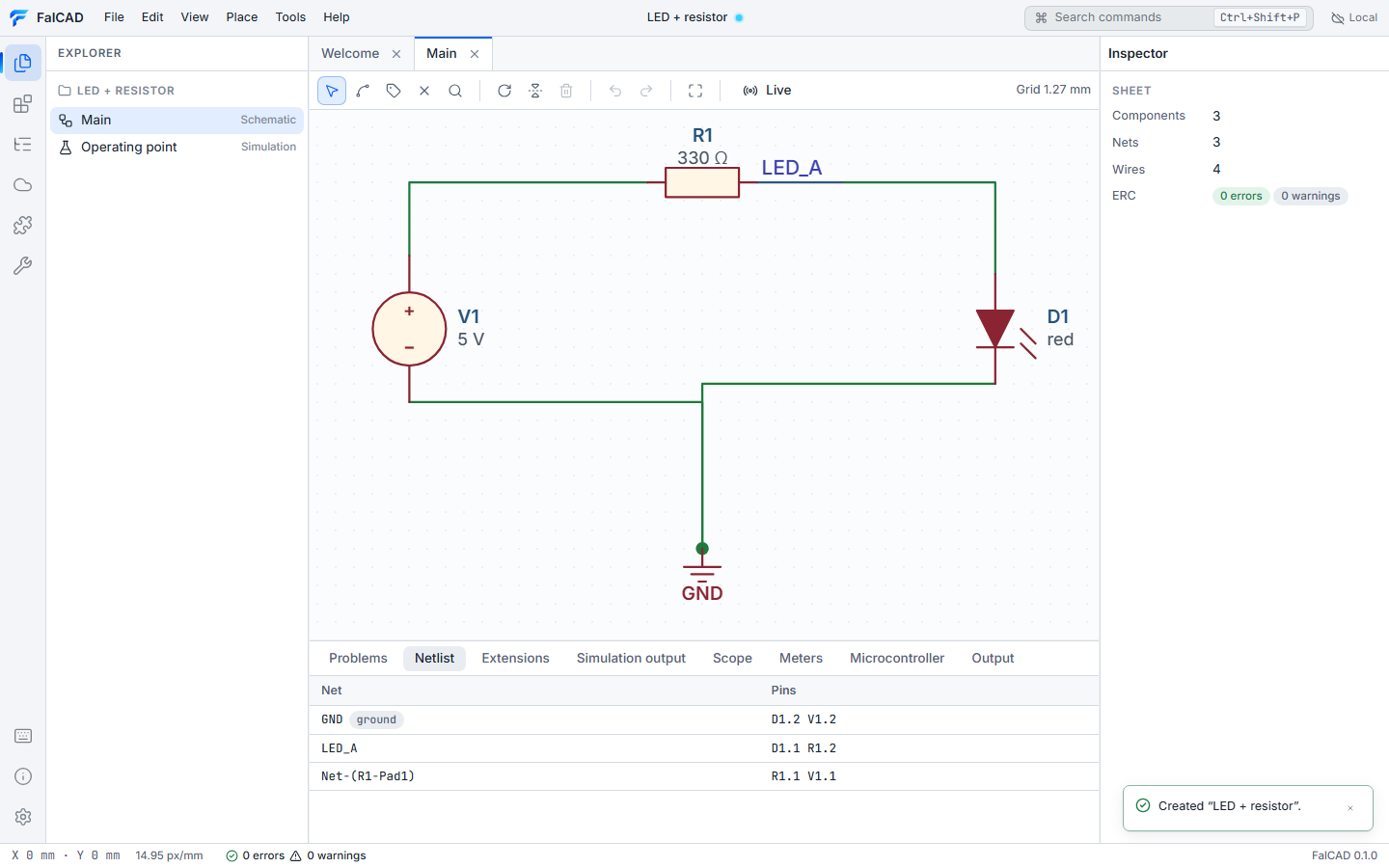
This tutorial uses the LED + resistor template: a 5 V source drives a red LED through a 330 Ω resistor.
Read the circuit
- Wires (green) connect pins. Two wires that merely cross don’t connect. A wire end that lands on another wire or on a pin does, and a dot marks junctions where three or more connections meet.
- Net labels such as
LED_Aname a net. Two labels with the same name on a sheet are the same net, even without a wire between them. Global labels connect across sheets. - Power symbols (
GND,+5V) name supply nets anywhere in the design.GNDis the reference node for simulation.
Open the Netlist tab in the bottom panel. Every net is listed with the pins it connects, for example LED_A — D1.1 R1.2. Click a net to highlight it on the canvas.
Edit
| Action | How |
|---|---|
| Place a part | press A (or open Library), type e.g. resistor, press Enter, click on the canvas. R rotates and X mirrors while placing; Esc stops placing. |
| Draw a wire | press W, click a pin, click corners, finish on a pin or another wire. / flips the corner direction. You can also drag from a pin. |
| Move | drag a part. Wires attached to its pins follow. Arrow keys nudge by one grid step. |
| Rotate / mirror / delete | select, then R, X, Delete |
| Label a net | press L and click a wire or pin |
| Mark a pin intentionally unused | press Q and click the pin |
| Edit values | select a part and change Value, Reference, position or footprint in the Inspector. Changes apply on Enter. |
| Undo / redo | Ctrl+Z / Ctrl+Y |
Every edit is one validated transaction. The editor refuses edits that would break the design, such as a dangling reference, and tells you why.
Check
The Problems tab runs the electrical rule check after every change.
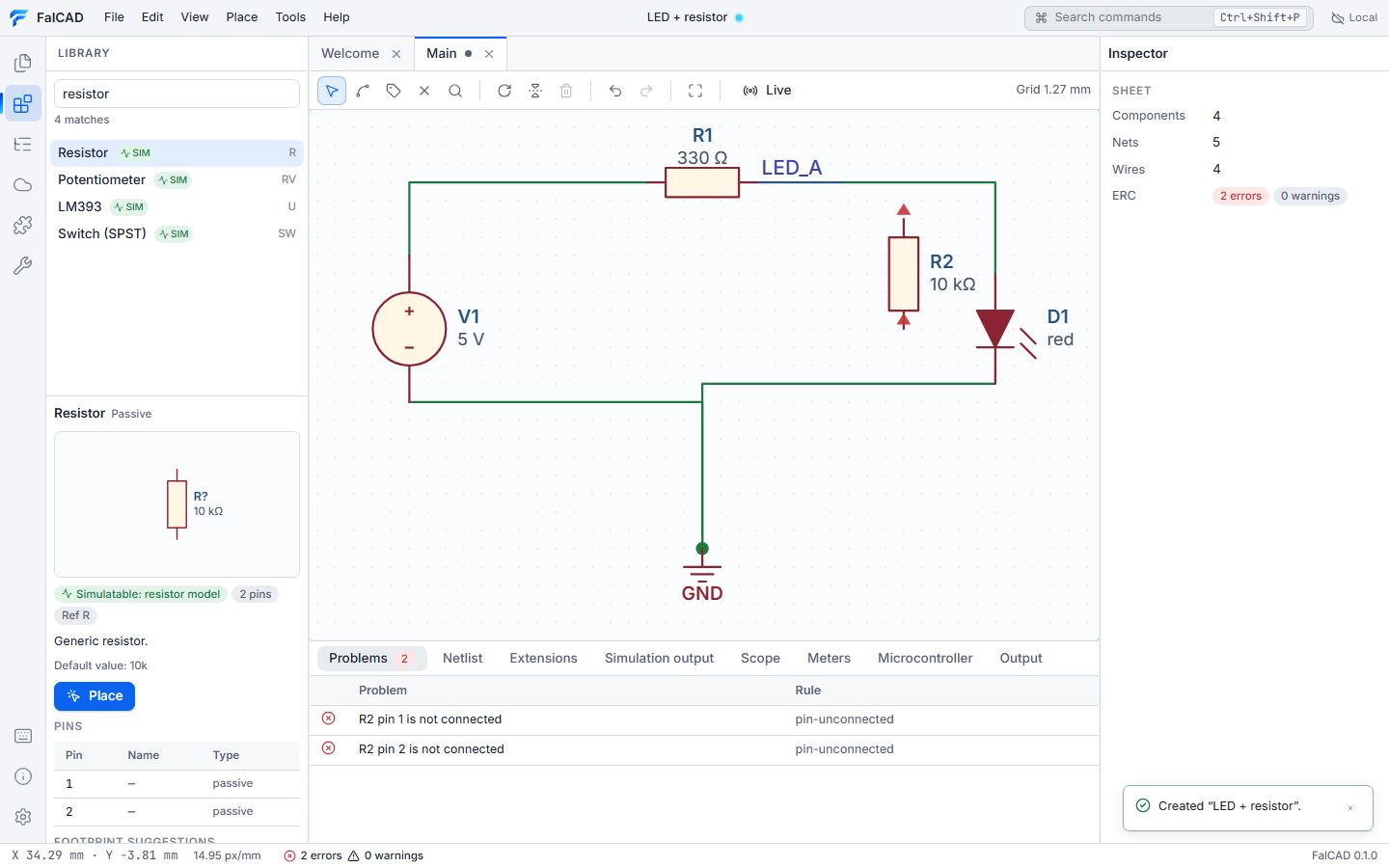
Click a problem to jump to it. Typical findings are unconnected pins, wire ends that touch nothing, several outputs driving one net, inputs nobody drives, power pins without a supply, and duplicate or unannotated references. If a finding is intentional, it can be suppressed with a written rationale. Suppressed findings stay visible.
Save
Ctrl+S saves the project as a folder of readable JSON files, ready for Git. See Projects, files and offline work.