3D system assembly and wiring
A 3D assembly brings the boards of a project together with the mechanical parts around them, and the wires between them. Use it to lay out a robot, an instrument or any product with more than one board, and to check that the wiring is electrically right before you build it.
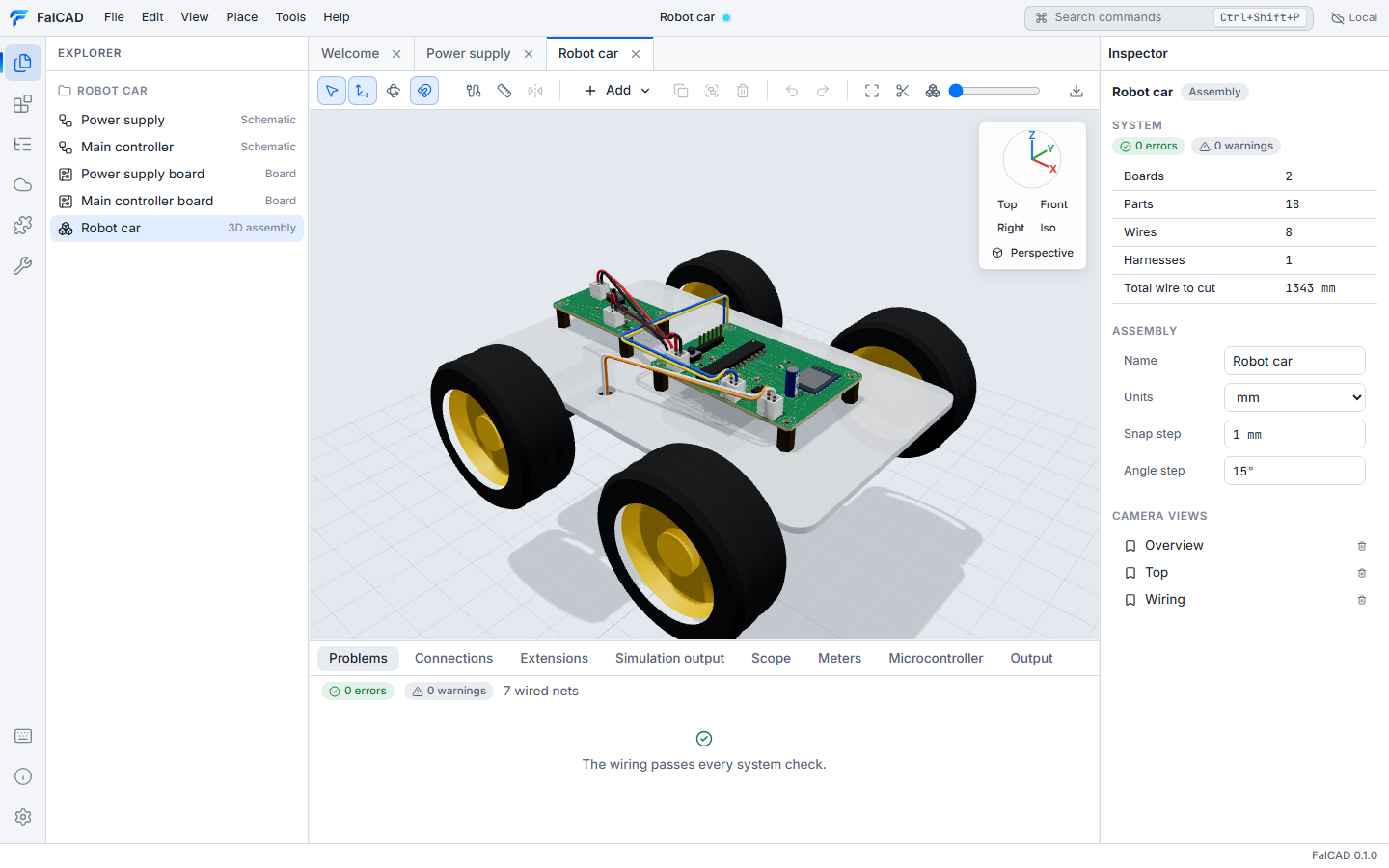
Create an assembly
- File > New 3D assembly places every board of the project side by side. Connector footprints (references such as J1, P2, CN3, BT1) are marked as external connectors.
- The Robot car template is a complete example: a power board with a 3×AAA battery holder, a main board with a microcontroller, a 2.4 GHz radio module and a motor driver, a chassis with wheels and gear motors, and the wiring between them.
Every edit is a transaction: undo and redo work, the tab shows unsaved changes, and shared cloud projects synchronise assemblies like any other document.
Place parts
| Action | How |
|---|---|
| Add a board or a part | Add in the toolbar: board, plate, box, cylinder, wheel, gear motor, standoff, bracket, battery holder, or an imported GLB, glTF, STL or OBJ model |
| Move and rotate | select a part and drag the gizmo (T move, R rotate). N toggles snapping to the snap step and angle step. |
| Exact values | type the position and rotation in the inspector |
| Place on a surface | A, then click a face: the part sits on it, turned to the face, and is attached to that part |
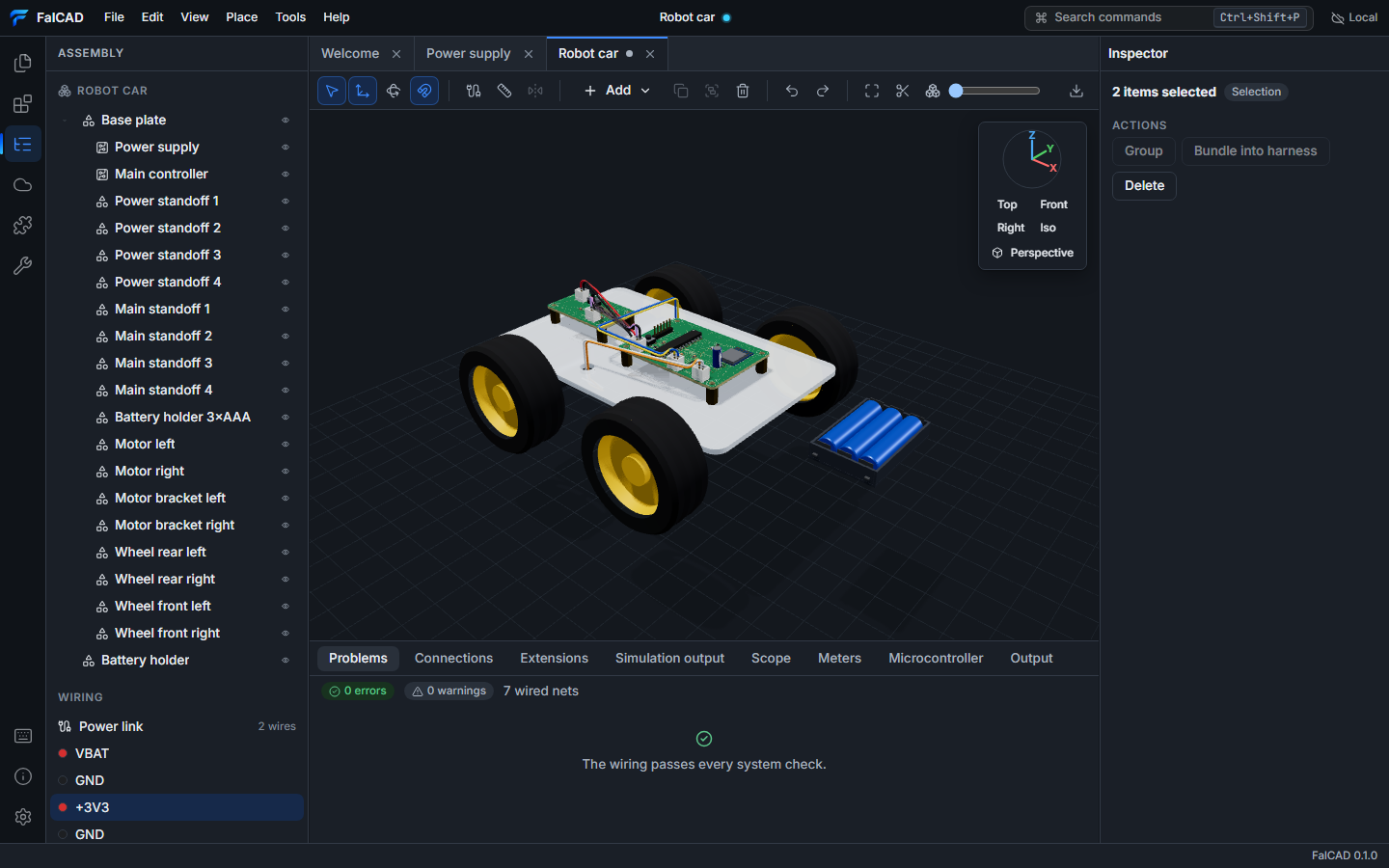
| Attach and group | drag a part onto another one in the Assembly side panel. Ctrl+G groups the selection. Attached parts move with their parent. |
| Hide, isolate | H hides, Alt+H shows everything, I isolates the selection |
| Views | Top, Front, Right and Iso buttons, 1, 3, 7 and 0, 5 for perspective or orthographic. Save camera views from the command palette. |
| Inspect | exploded view slider, section plane (X), measure distance (M) |
Boards are live: change a board in its PCB editor and the assembly shows the change at once, including where the wires attach.
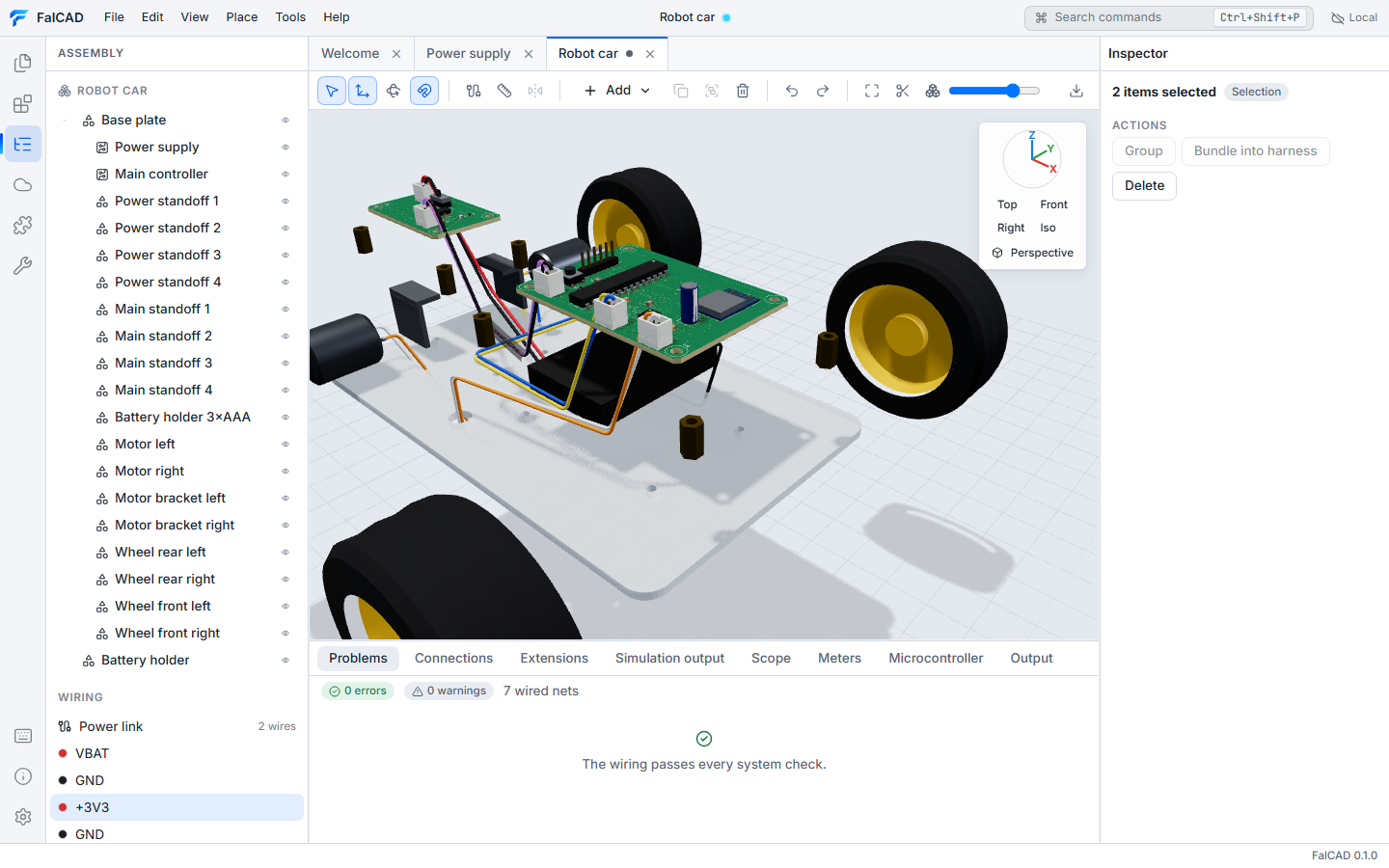
Wire
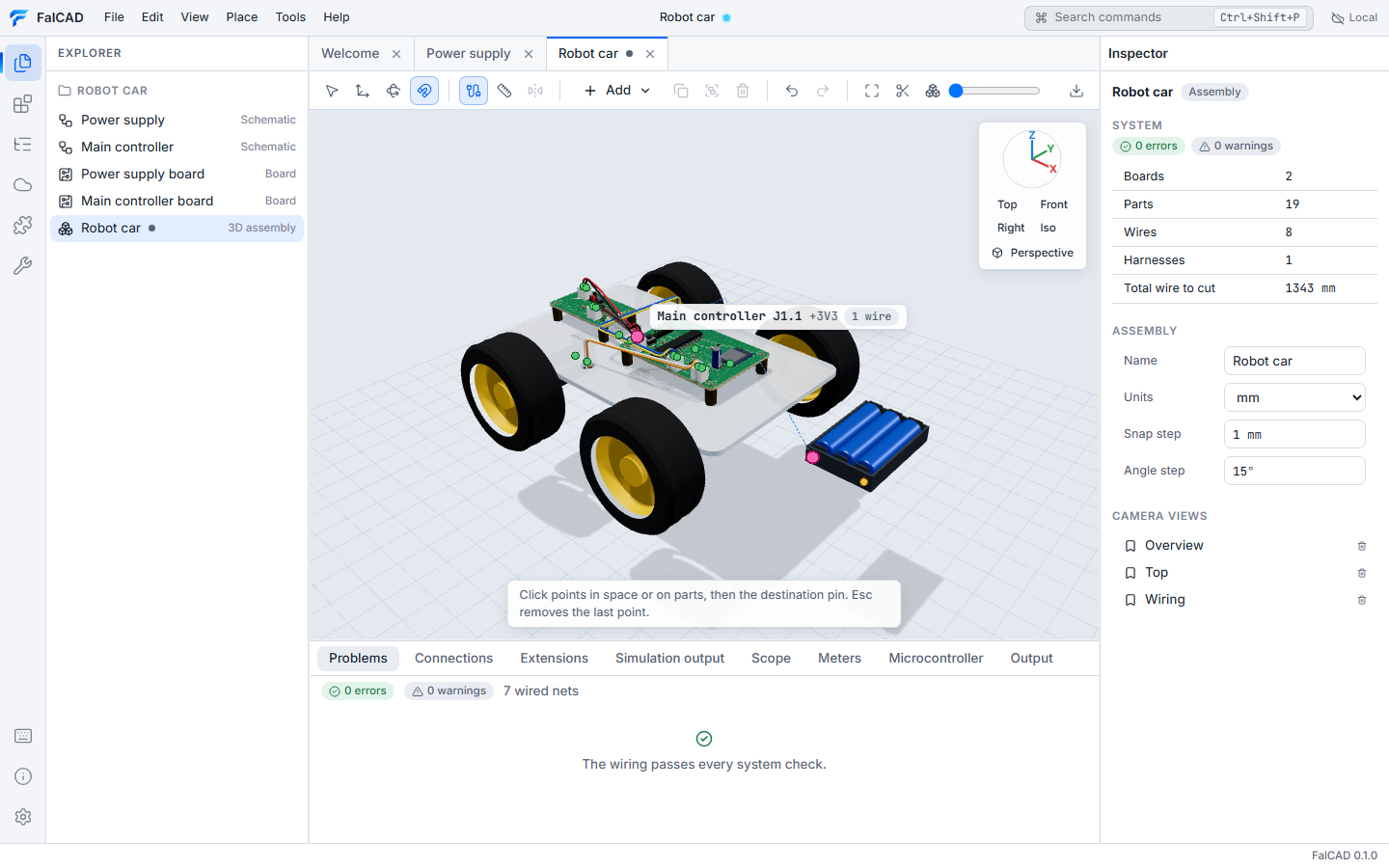
- Press
W. Connector pins and terminals of batteries and motors light up. Hover a pin to see its name and net. - Click the first pin, then click points in space or on parts to route the wire, then click the destination pin.
Escremoves the last point. - Select a wire to set its colour, tracer stripe, gauge (AWG or mm²), insulation, signal label, current, bend radius and slack. The inspector shows the routed length, the length to cut and the ampacity of the gauge.
- Drag a route point to move it. Double-click a wire to add one.
- Select two or more wires and choose Bundle into harness to sleeve them together.
Wires to supply nets default to red, wires to ground to black.
Connections and system checks
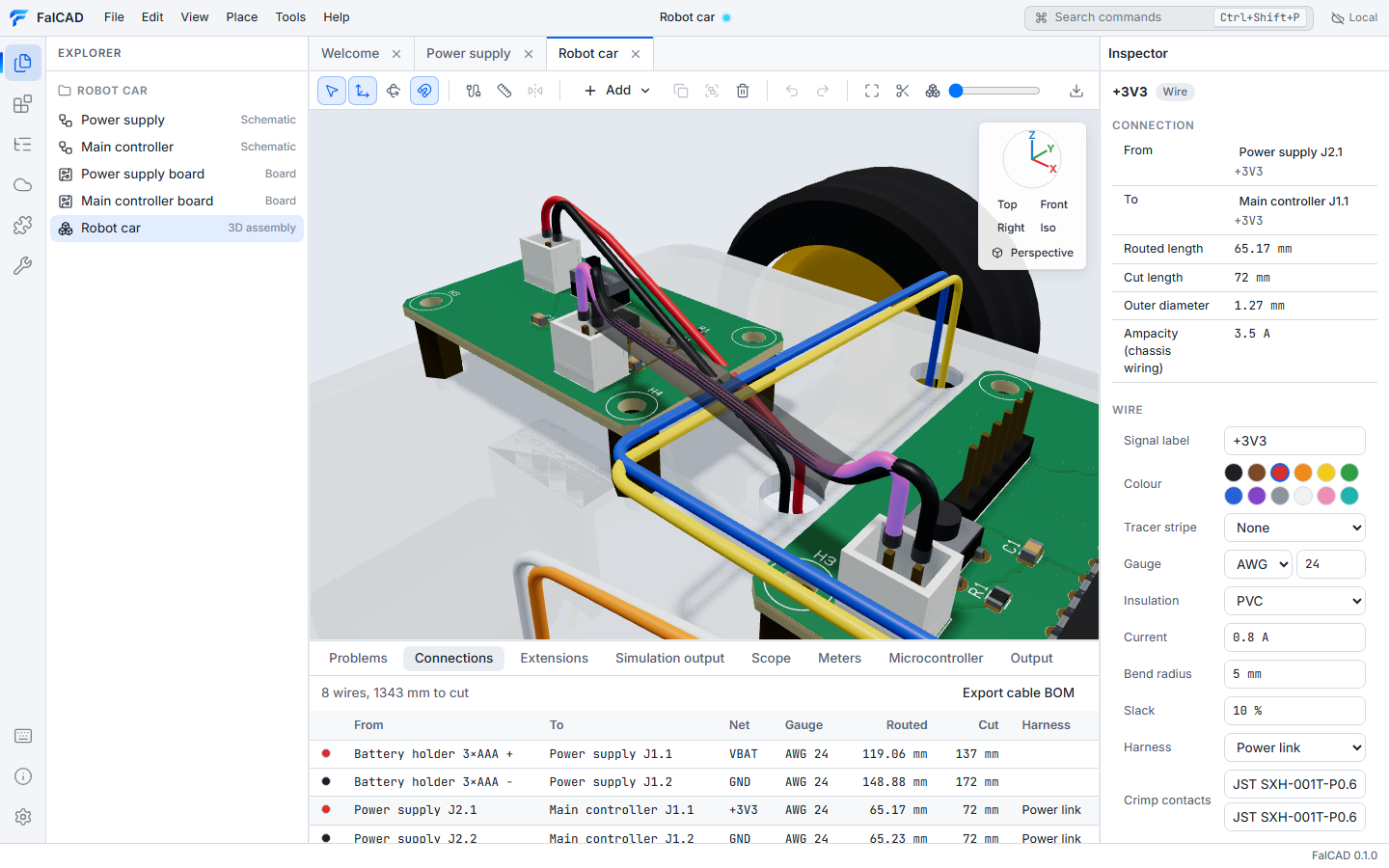
The Connections tab lists every wire with its ends, net, gauge, routed length and cut length. Export cable BOM writes a CSV cut list with wire stock totals, mating housings, crimp contacts and sleeves.
The Problems tab runs the system checks across all boards:
- a wire ends on a pin that is not connected on its board, or on a pin marked no-connect
- two different supplies are joined (for example a 4.5 V battery wired into a 3.3 V rail)
- a supply is wired to ground
- outputs of two boards drive the same net
- a declared current is more than the gauge carries (chassis wiring ampacity)
- two boards are wired together without a ground return
- a pin or terminal is used by more than one wire
- parts overlap
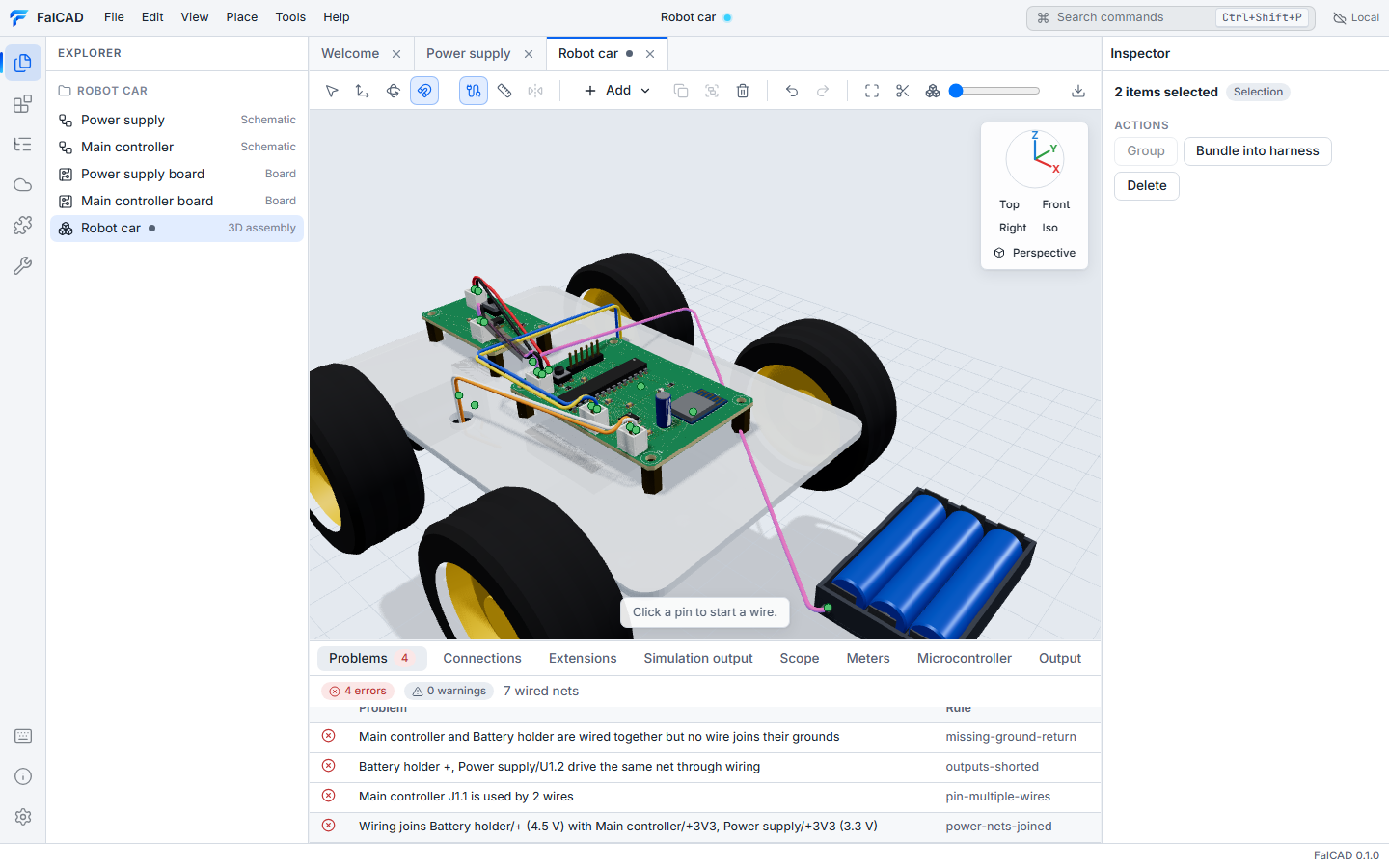
Click a problem to select the wires or parts involved and bring them into view.
From the command line
falcad assembly ./robot-car --bom cables.csv
prints the system check and the wire list, writes the cable BOM, and exits with code 1 when there are errors, so it can gate CI.